


Draw Animation - Anim Creator
4.31.22K Reviews
App Specs
- Version
- 10.4
- Updated On
- License
- Free
- Downloads
- 10,000,000+
- Developer
- Banix Studio
- Categories
- Art & Design
- Platform
- Android, iOS
Screenshots
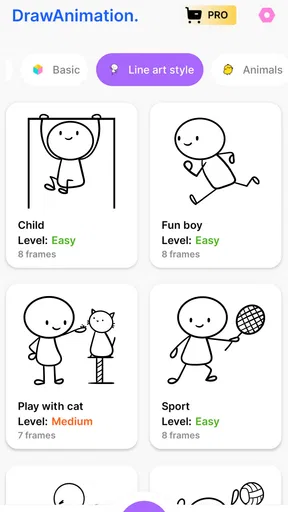
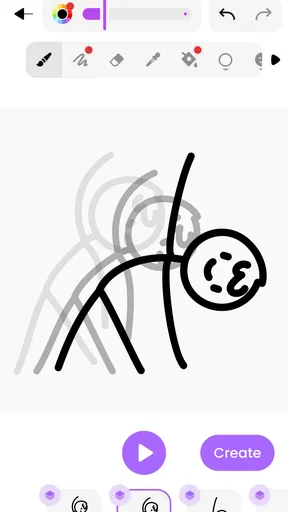
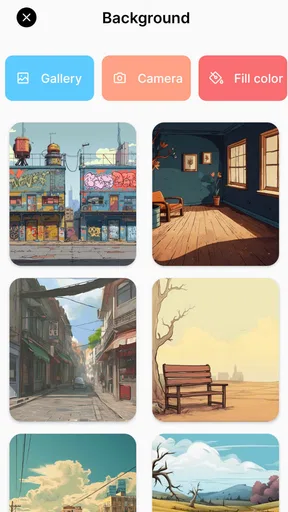
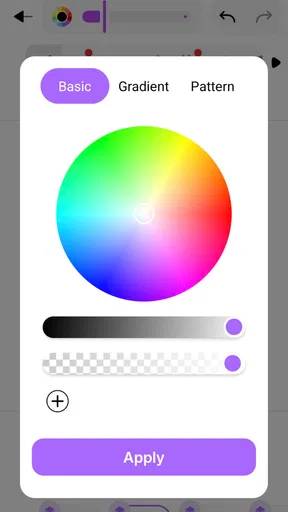
 Analysis by AppCompare
When several people share a phone or tablet, a drawing app can become an easy way to make something together: one person sketches a character, another suggests what happens next, and a quick animation turns the idea into a small story. That kind of casual, shared use is where Draw Animation - Anim Creator makes the most sense to me. It is an art and design app from Banix Studio, built around drawing frame by frame rather than assembling a polished video from ready-made pieces.
I would treat it as a creative activity, not as a shared family account or a coordinated production space. Before passing a device around, it helps to agree whose project is being edited and whether everyone is adding to one animation or making separate attempts. That simple boundary matters: frame-by-frame work is hands-on, and an accidental change can alter the timing or appearance of someone else’s drawing. I would also make a habit of checking the saved project before switching users, rather than assuming that a shared device automatically means separate work areas.
A low-pressure activity for a shared device
A realistic use is a short after-school drawing session at the kitchen table. One person draws a bouncing ball, another changes its position in the next frame, and a third adds a detail such as a face or a background. The result does not need to be impressive; the useful part is seeing how small changes between drawings suggest movement. For siblings or friends who like drawing but have different skill levels, this gives everyone a way to contribute without needing to master a complicated editing workflow first.
It can also work well as a personal sketchbook when the device is not being shared. I would use it to test a tiny movement—like a waving hand or a character blinking—before investing time in a longer scene. Keeping the first experiment deliberately small makes it easier to understand how the frames relate, and gives you a finished result quickly enough to decide whether you enjoy this style of animation.
Keeping projects and expectations manageable
When people take turns, I recommend agreeing on a simple plan before drawing: who starts, what the animation is meant to show, and when someone should stop editing. This is not about imposing rules on a creative activity; it just avoids the familiar shared-device problem where a quick contribution becomes an unexpected overhaul. If several people want to make their own work, taking turns with the device is clearer than treating one project as a communal file.
The app’s frame-by-frame approach is also a useful way to learn patience. Each drawing only needs to differ slightly from the one before it for movement to read clearly, so a beginner can focus on one change at a time. A practical tip is to plan the action in a few simple poses first, then fill in the changes between them. That can prevent a common frustration: drawing many frames without a clear idea of what the movement should look like.
For a household choosing an app for children, the age label is one part of the decision, not a substitute for adult judgement. Draw Animation - Anim Creator is rated for Everyone, but I would still show a younger user how to handle shared projects and discuss where they intend to share finished work. A rating does not tell you whether a particular child will find a drawing workflow comfortable, so a short supervised tryout is the most useful test.
Worth Reading Before You Choose

Baby Panda World Brings Quick Play to Modern Phones, but Its Game Library Feels Busy

ESPN’s Live Game View Makes Following Close Games Easier

QuizzLand Review: A Good Fit for Short Trivia Breaks, Not Every Player

Basketball Stars: Multiplayer Is Fast, but Can It Recover When Matches Go Wrong?

WEBTOON Turns Phone Updates Into a Better Reading Routine

Link to Windows Runs on Shared Habits, Not Social Feeds
What the drawing workflow is good for
As someone who’s always been fascinated by the art of animation, I recently stumbled upon an app that piqued my interest: Draw Animation - Anim Creator. Let me tell you, diving into this app was like opening a treasure chest of creative possibilities. Whether you’re a seasoned animator or just someone looking to have some fun, this app has something for everyone.
Getting Started with Draw Animation - Anim Creator
When you first open Draw Animation - Anim Creator, you’re greeted with a user-friendly interface that’s intuitive enough for beginners but packed with features that even pros will appreciate. The app provides a brief tutorial that’s really helpful if you’re new to animation. Trust me, it’s like having a mini animation school right in your pocket.
The app allows you to create frame-by-frame animations, and the timeline feature is a breeze to use. You can easily scroll through your frames, making adjustments as needed. It’s perfect for those moments when inspiration strikes and you want to bring your ideas to life quickly.
Features That Stand Out
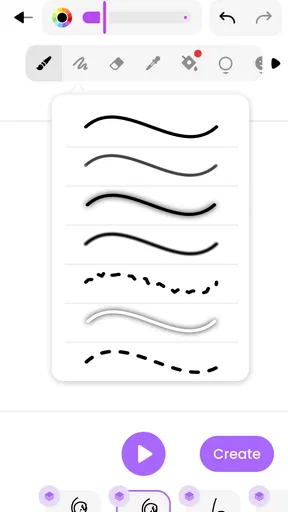
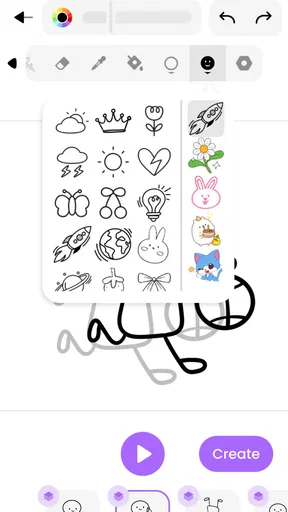
One of my favorite features is the extensive color palette. You can choose from a rainbow of colors or create custom shades. It’s like being a kid in a candy store, but instead of candy, it’s colors! Plus, the brush tools are versatile, offering a range of sizes and effects that can make your drawings pop.
If you’re worried about losing your work, fear not! The app has an auto-save feature that’s a real lifesaver. I can’t tell you how many times I’ve lost my work in other apps, but this one has my back. It’s a small detail, but it makes a big difference.
Sharing Your Creations
Once you’ve crafted your masterpiece, sharing it is a cinch. The app lets you export your animations in various formats, making it easy to share on social media or with friends. I’ve had a blast showcasing my creations, and it’s always fun to see the reactions from friends and family.
The community aspect of the app is also worth mentioning. You can browse other users’ animations for inspiration or even collaborate on projects. It’s like being part of a global animation studio, and the creativity on display is truly inspiring.
Making a first animation feel achievable
The frame timeline is the part I would learn first, because it is the key to making a drawing move rather than simply look finished. Start with an action that has an obvious beginning and end: a ball rising and falling, a flower opening, or a face changing expression. Draw the first and last poses, then work through the in-between positions. This keeps the project focused on motion and gives you a clearer reason for each frame.
For a shared session, a simple division of labor can make the process smoother. One person can decide the action, another can draw the main poses, and someone else can add color or a background. I would avoid letting everyone alter every frame at once, especially on a small screen; that can make it hard to tell which changes are intentional. Taking turns also gives a beginner time to understand the timeline before making edits that affect the whole sequence.
Choosing the right tool for the job
Compared with a standard drawing app, this one is more useful when the goal is to see motion unfold across frames. A conventional sketching tool is usually the more comfortable choice for a single illustration, detailed painting, or work that depends on advanced image-editing controls. Conversely, a full desktop animation program is a better fit when you need a complex production workflow, fine control over many layers, or a larger workspace. I see this app as a lighter, more approachable middle ground: it gives a casual animator a way to experiment with movement without turning a quick idea into a technical project.
That trade-off shapes who should try it. It suits people who enjoy doodling, want to introduce a child or friend to basic animation, or need a quick visual way to explain an idea. It is less suitable for someone whose main goal is polished professional animation or elaborate artwork with precise editing demands. The appeal is the directness of drawing and adjusting frames, not replacing every tool an illustrator or animator might use.
Small habits that make a difference
Custom colors are especially handy when several frames need to look consistent. Rather than choosing a slightly different shade each time, settle on the character’s main colors early and reuse them as you work. Similarly, keep backgrounds simple while testing movement: a plain setting makes it easier to notice whether the character’s position changes smoothly. These small choices reduce busywork and help the animation read clearly, even when the drawing itself is rough.
Auto-save is reassuring, but I would still build a pause into the workflow before handing the device to someone else or moving on to a different activity. Take a moment to review the latest frames and confirm that the sequence still tells the intended story. Saving work and keeping it organized are different concerns; a shared device makes it especially worthwhile to agree on which project is being continued and who is making the next change.
Sharing with care
Exporting can turn a private experiment into something easy to show friends or family, which is one of the most satisfying parts of finishing a short animation. I would make the first export a small test, though, before spending time on a longer project. That lets you check whether the result looks the way you intended outside the editing view and decide if it is ready to share. The option to browse other users’ work can spark ideas, but I find it more helpful to borrow a broad prompt—such as trying a different kind of movement—than to copy another person’s style frame for frame.
Coordination matters if a group wants to collaborate. Agree on the idea and the person handling the final export, then let each contributor make a clearly defined addition. That is a practical way to keep a small project coherent without assuming the app provides account separation or household controls. For a personal animation, none of that planning is necessary; it is simply a useful routine when a device and project are shared.
Cost, access, and household fit
The app is free to download, with in-app purchases ranging from $1.49 to $19.99 per item. I would let someone explore the basic drawing experience before deciding whether any purchase is worthwhile, and make sure the person responsible for purchases understands that optional items can cost extra. Its 10M+ installs and average rating of 4.3 from around 51K ratings suggest that many people have tried it, but those figures cannot tell you whether its particular drawing style suits your household. A quick hands-on test is more useful than popularity alone.
It was released on February 23, 2024, and version 8.6 requires Android 6.0 or later. That makes compatibility worth checking on an older shared device before planning a group activity around it. Banix Studio is the developer, and the Everyone age rating makes the app broadly accessible, though I would still guide younger users around sharing decisions and paid items. The practical question is not just whether it opens on the device, but whether the person using it enjoys drawing one frame at a time.
Final Thoughts
In a nutshell, Draw Animation - Anim Creator is a fantastic tool for anyone interested in animation. It’s packed with features that make the animation process both fun and rewarding. Whether you’re creating a simple stick figure animation or an intricate scene, this app has got you covered.
If you’re looking to unleash your inner animator, I highly recommend giving this app a try. It’s a delightful blend of creativity and technology that’s sure to keep you entertained for hours. So go ahead, download it, and start animating your imagination!
For a household, my recommendation is more specific: use it for short, low-pressure projects where drawing and turn-taking are part of the fun. It is a good fit for a curious beginner, a casual doodler, or a family member who wants to experiment with motion on a phone. I would choose another tool for detailed illustration, demanding production work, or situations where separate user profiles and tightly managed sharing are essential.
The strongest reason to try it is that it makes the link between a drawing and its movement tangible. If you keep the first project brief, use a clear sequence of poses, and agree on who is editing when the device is shared, the workflow can feel approachable rather than fiddly. That is the balance I would keep in mind: an enjoyable way to make small animations, with the best results coming from simple ideas and sensible expectations.
Pros
- User-friendly interface for beginners.
- Wide range of drawing tools available.
- Supports frame-by-frame animation.
- Export animations in multiple formats.
- Responsive and smooth performance.
Cons
- Limited advanced features for professionals.
- Occasional ads can be distracting.
- Some drawing tools feel basic.
- No cloud save for projects.
- Requires in-app purchases for extras.
FAQs for Draw Animation - Anim Creator
What is Draw Animation - Anim Creator, and what can I do with it?
Draw Animation - Anim Creator is a versatile app designed for aspiring animators and artists. It allows users to create detailed animations through frame-by-frame drawing. You can sketch, animate, and bring your creative ideas to life with a variety of tools and features tailored for both beginners and experienced animators.
Is Draw Animation - Anim Creator suitable for beginners?
Absolutely! Draw Animation - Anim Creator offers an intuitive interface with simple navigation, making it accessible for beginners. The app includes tutorials and guides to help users understand the basics of animation, as well as features that allow for gradual skill development as users become more comfortable with the process.
What features does Draw Animation - Anim Creator offer to enhance the animation process?
Draw Animation - Anim Creator provides a wide array of features, including multiple layers, onion skinning, and a customizable frame rate. It also offers a variety of brushes and colors for detailed artwork, along with export options to share your animations easily on various platforms. These tools are designed to enhance creativity and precision.
Are there any in-app purchases or subscriptions required in Draw Animation - Anim Creator?
While the app is free to download, it may offer in-app purchases for additional features or tools that can enhance your animation experience. This could include premium brushes, expanded color palettes, or ad-free usage. However, the basic features are often sufficient for creating simple animations without additional costs.
Can I share my animations created with Draw Animation - Anim Creator on social media?
Yes, Draw Animation - Anim Creator provides easy export options that allow you to share your animations directly on social media platforms like Instagram, Facebook, and Twitter. You can export your creations in various formats, ensuring compatibility and ease of sharing to showcase your work with friends and followers.


